


With a few dozen messages, you might notice a problem manually. With thousands of invoices, confirmations and notifications, you need an overview: how many communications arrived, whether errors are increasing and which part of your operation is affected. doMail provides a dashboard, statistics and individual communication details. Each view answers a different question.
1. Start with the overall picture
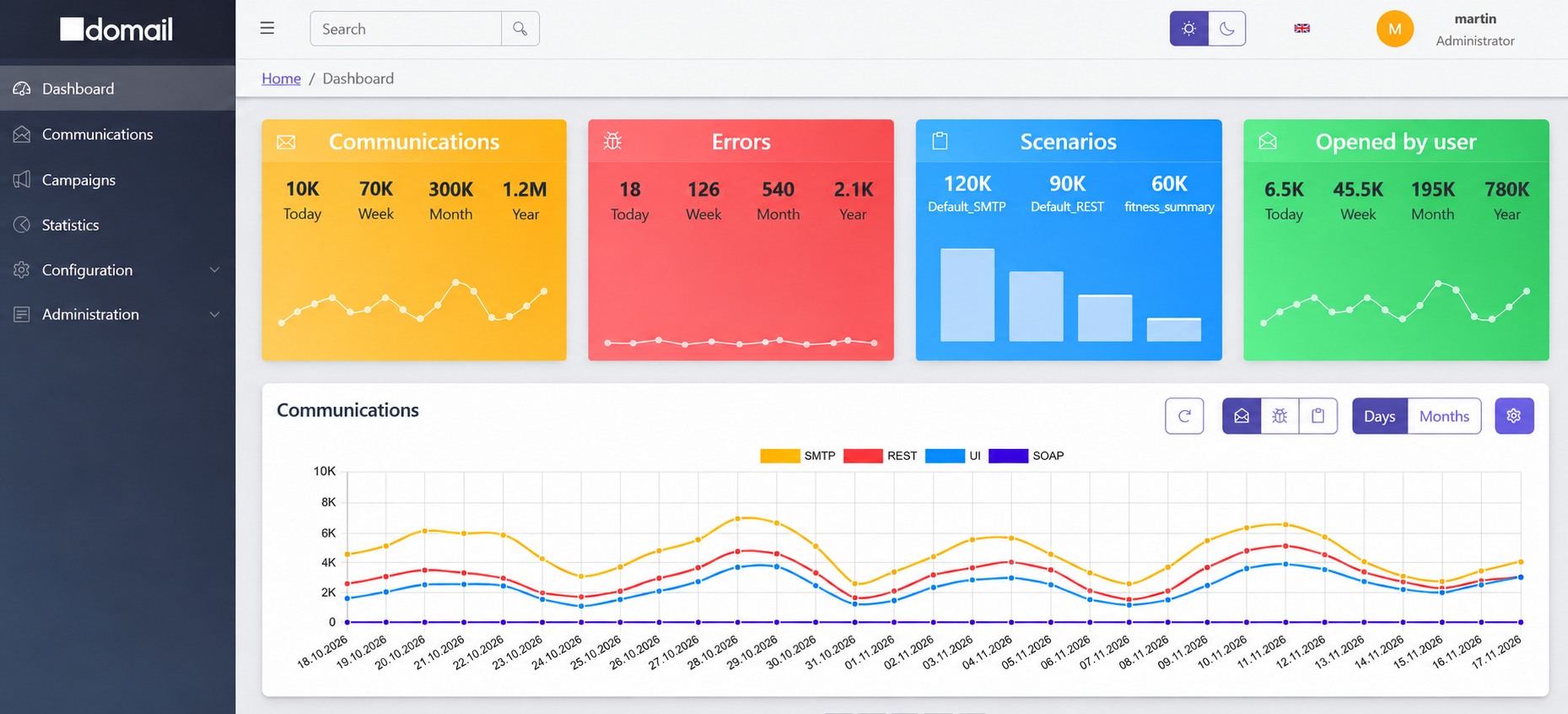
Open Dashboard. The main overview contains summary indicators and a chart showing communications, errors or scenarios over time. The red Errors card shows absolute error counts for today, the current week, month and year. Access to the dashboard depends on your permissions.
Focus on changes from normal operation. An unexpected drop in communications could mean that the sending application has stopped submitting requests. If error counts rise, use their types and logs to identify whether they occur during processing, dispatch or delivery.
Example: the morning invoice batch
You expect a new batch of communications every working morning. If the usual increase is missing, first check whether the source application or campaign started the batch. If communications are arriving but errors are increasing too, continue with the error overview and individual records.
2. Locate the source of the problem
Switch to the more detailed channel, error and scenario overviews on the dashboard. These help narrow down an issue before you start opening individual communications.
- Channels: compare where requests are coming from. A failure in one input channel may be hidden in the overall total.
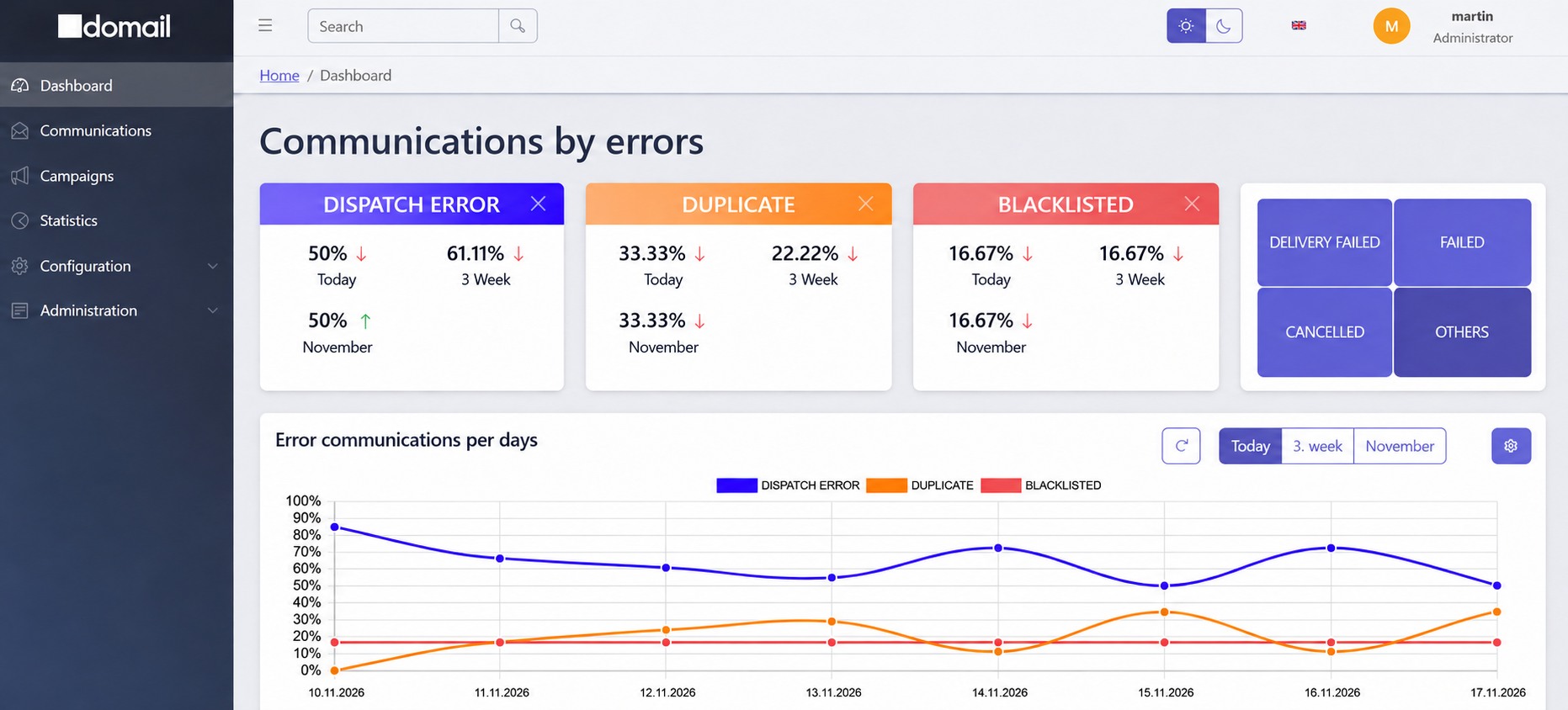
- Errors: the cards and chart show each error type as a percentage of all erroneous messages for the relevant period. They show which types predominate and how their shares change.
- Scenarios: compare different processing paths. If only one scenario is affected, check its settings and the associated template or script.
Scenarios can distinguish communications processed through Default_SMTP and
Default_REST, or specific uses such as fitness_summary and
newsletter. These names help identify which integration or batch is affected by a deviation.
In the detailed views, you can display daily data, compare the same numbered week across previous months, or compare the same month across previous years. In the example, 3. week compares the third weeks of different months, while November compares November data across years.
A larger share of one error type does not necessarily mean a higher count of that error. Assess these shares alongside absolute counts and communication volume.
3. Move from a summary to an individual communication
In Communications, select a custom time range and a processing state, delivery state or a combination of both. Narrow the results further by scenario or recipient if needed. Open an individual communication from the results: Tasks shows processing progress and state changes, Logs provides error details, and Addresses shows the outcome for each recipient.
For absolute counts over a custom period, open Statistics → Communications. Select the time range and the required processing and delivery states. The table shows counts of communications matching your filter; click a count beside a state to open the corresponding records. You can further filter results by scenario, group, tags or recipient. Groups and tags are most useful when your requests use them consistently, for example to distinguish invoices, order confirmations and service notifications.
A communication count is not automatically an email count or a count of unique recipients. One request can have several recipients, and reprocessing creates additional runs. Check what a particular view counts before comparing its figures with another view.
4. Processing state and delivery state
Each communication has two separate states. The processing state describes processing and dispatch in doMail. The delivery state describes the delivery outcome and confirmations from the recipient.
Processing states
| State | Meaning |
|---|---|
| received | doMail received the request for processing. |
| processing | The request is being processed using its scenario and script. |
| created | The email has been generated and is ready for dispatch; it may be waiting for its scheduled time. |
| dispatching | The email is being dispatched. |
| dispatched | doMail handed the email to the outgoing SMTP server. |
| error | Request processing failed. Check the logs for the cause. |
| dispatch error | Dispatch through the SMTP server failed. |
| duplicate | Duplicate identifiers were used in the communication. |
| blacklisted | Dispatch was blocked because the recipient is on the blacklist. |
| cancelled | Processing or dispatch was cancelled. |
Delivery states
| State | Meaning |
|---|---|
| none | Applies to meta communications and communications that were not dispatched because of an error. |
| unknown | The email was dispatched, but its status is not yet known. |
| delivery failed | Non-delivery was recorded. Check the affected recipient and logs for details. |
| delivery confirmed (TP) | TrackPixel confirmed an email open through the loading of its tracking pixel. |
| delivered and seen (TL) | TrackLink recorded a click on a specific tracked link in the email. |
| ambiguous | Individual recipients have different delivery states. Check the Addresses tab. |
| blocked | The message was blocked. |
TP (TrackPixel) identifies a confirmed email open. TL (TrackLink) goes a step further by recording a click on a specific link in the email. Details of tracked links are available in the communication detail under TrackLinks.
A short check after each important batch
- Check that the expected volume of communications has arrived.
- Compare errors with the previous period and the workload.
- Narrow down any deviation by channel or scenario and investigate individual records.
- After fixing the cause, check new attempts and any delivery information that arrives later.
If you find a failed communication, continue with Troubleshooting email processing and sending errors.