


An invoice was not sent, a customer is waiting for a confirmation, or some campaign messages have bounced. Before trying again, you need to find where the communication stopped. doMail brings processing details, individual recipients and error logs together under one communication. Here is how to use that information and decide whether to resend a message or reprocess the request.
1. Find the communication and identify the stage that failed
Open Communications and find the record by communication ID, recipient address or time. If you submit requests from your own application, the external ID you attached to the request also helps locate it. Open the detail and check both its processing state and delivery state.
- Processing failure: check the scenario, script, template and input data. An email may not have been generated yet.
- Dispatch failure: the message may have been generated, but handing it to the SMTP server failed. Look for the cause in the dispatch log.
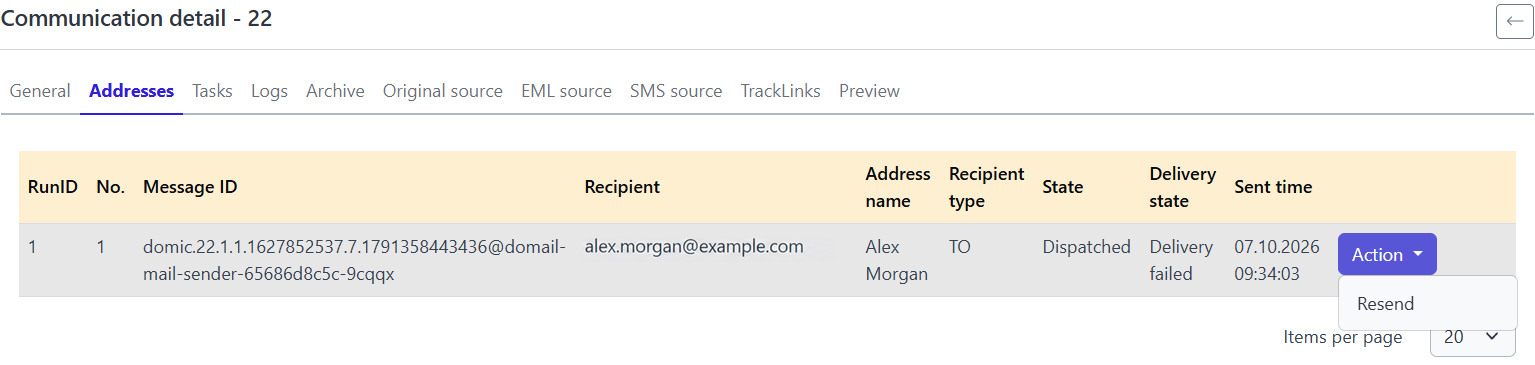
- Delivery failure after dispatch: the email was dispatched, but non-delivery was subsequently recorded. Its processing state can therefore be dispatched while its delivery state is delivery failed.
If a communication has several recipients or processing runs, also open the Addresses tab. Check the result for the particular address and run involved.
2. Read the cause in the logs
In the communication detail, open Logs. Check the error time and message against the relevant attempt. Distinguish a problem with one address from an error recurring across several communications.
| What you find | What to check before retrying |
|---|---|
| Missing data or a template error | Input data, parameter names and template processing. |
| Script error | The failure location in the log, processing logic and input values. |
| The request could not be read from a file | Availability of the original request file and the cause of the read failure. |
Retry after resolving the cause. If an input value or request file is missing, repeating the same processing will not supply it.

3. Choose between Resend and Reprocess
Once you have resolved the cause, return to the first tab in the communication detail and open Action. The available options depend on the communication state and your permissions.
Resend
Use this when a correctly generated message already exists and you need to repeat dispatch. It uses existing message content; it does not regenerate the message from a corrected template.
Example: send a prepared email after restoring the connection to the SMTP server.
Reprocess
Use this when the request needs to pass through the scenario and script again, for example after correcting processing logic.
Check the input data as well. Repeating the original request does not automatically retrieve updated data from your application.
Communication 16 has the Error processing state and None delivery state. Its menu offers Reprocess but not Resend: this example requires processing the request again after resolving the cause of the failure.

If only one recipient is affected, also check the action on that recipient's record in Addresses. Verify the operation's scope before confirming so that you do not unnecessarily send another copy to other recipients.
4. Check the content and the result of the new attempt
For a dispatched message, use Preview to check how the email looks. To inspect headers, MIME structure or attachments, open EML source and select the relevant run. You can also download the available EML file. Preview and EML source remain available if delivery subsequently fails. If the communication failed during processing, however, the preview is empty and no EML source is available.
After retrying, refresh the detail and check the new run, recipients and logs. Confirmation that an action was accepted does not itself mean dispatch succeeded. A dispatched state does not confirm that the recipient read the message either; non-delivery information can arrive later.
When the same error keeps recurring
If several messages fail together, look for a shared cause: the same scenario, template, SMTP server or recipient domain. Verify the fix on one communication before considering a bulk action. If you cannot resolve the issue, do not hesitate to contact us at domail@domail.io. Include the communication ID, attempt time, run number and exact error message in your email.
To spot a growing number of errors before a customer reports them, see Email monitoring: from an overview to a specific failure.