


For important emails, you also need to know which messages could not be delivered. doMail collects processing, sending and delivery information. You can use it in database reports, receive updates through ActiveMQ or get undelivered messages by email with a CSV attachment. This helps you correct contact details, resolve a technical issue or reach the customer another way.
What doMail reports
Reporting follows the hierarchy request → processing run → individual messages. One request can create several messages. Reprocessing creates another run, so include the run number when interpreting the results.
The sending state describes processing and dispatch. The delivery state adds subsequent information, such as a non-delivery notification, an open recorded through TrackPixel or a click on a tracked link through TrackLink. A sent email can still have an unknown delivery state. When messages within one run have different delivery states, the aggregate run state can be ambiguous.

SMTP errors and non-delivery notifications
A failure can be detected during sending or later, when a non-delivery report (NDR, also called a bounce) arrives. doMail evaluates both the code and message text and categorizes causes such as an invalid address, full mailbox, blocked account, oversized message, security policy rejection or network problem.
Enhanced status codes have a format such as 5.1.1. The 4.x.x class indicates
a temporary failure and 5.x.x a permanent failure. A code starting with five does not
always mean the address does not exist: 5.1.1 indicates a bad destination mailbox address,
whereas 5.7.1 indicates rejection due to authorization or policy.
The code meanings are defined in RFC 3463.
In received notifications, the same issue can appear with different codes and wording. The table below records examples of messages concerning a nonexistent or unavailable address. These are combinations received from servers; interpret the complete text alongside the code.
| Received message contains | Received code |
|---|---|
user unknown | 4.1.1 |
domain not found | 4.1.8 |
cannot find your hostname | 4.7.2 |
5.1.2 | 5.0.0 |
domain is no longer used for mail | 5.0.0 |
address rejected | 5.0.0 |
mailbox not found | 5.0.0 |
invalid recipient | 5.0.0 |
no user | 5.0.0 |
does not exist | 5.1.1 |
email does not exist | 5.1.1 |
no mailbox here by that name | 5.1.1 |
notfound; recipient | 5.1.1 |
user does not exist | 5.1.1 |
user doesn't exist | 5.1.1 |
user unknown | 5.1.1 |
user unknown in virtual alias table | 5.1.1 |
user unknown | 5.1.2 |
undeliverable address | 5.1.7 |
mailbox unavailable | 5.2.0 |
no such mailbox | 5.2.0 |
mailboxinactive | 5.2.1 |
domain is disabled | 5.3.2 |
domain * does not exist | 5.4.2 |
address rejected | 5.4.2 |
does not exist | 5.4.3 |
no such user | 5.4.3 |
unknown user | 5.4.3 |
user unknown | 5.4.3 |
domain name not found | 5.4.4 |
nonexistent domain | 5.4.4 |
mailbox unavailable | 5.5.0 |
no such recipient | 5.5.0 |
mailbox unavailable | 5.5.2 |
no such recipient | 5.7.0 |
address does not exist | 5.7.1 |
invalid recipients | 5.7.1 |
mailbox not found | 5.7.1 |
mailbox unavailable | 5.7.1 |
no such user | 5.7.1 |
user does not exist | 5.7.1 |
user unknown | 5.7.1 |
user does not exist | 5.7.2 |
This is why a report can include both the categorized detail and the original SMTP message. A security rejection may mention SPF, DKIM, DMARC or sender blocking. A full mailbox or invalid address requires a different response from a sending configuration error.
Database reporting
We can also prepare database reports tailored to your needs.
If you are interested, contact us at domail@domail.io. We will agree on the report content with you and configure the reports on your doMail instance.
ActiveMQ notifications
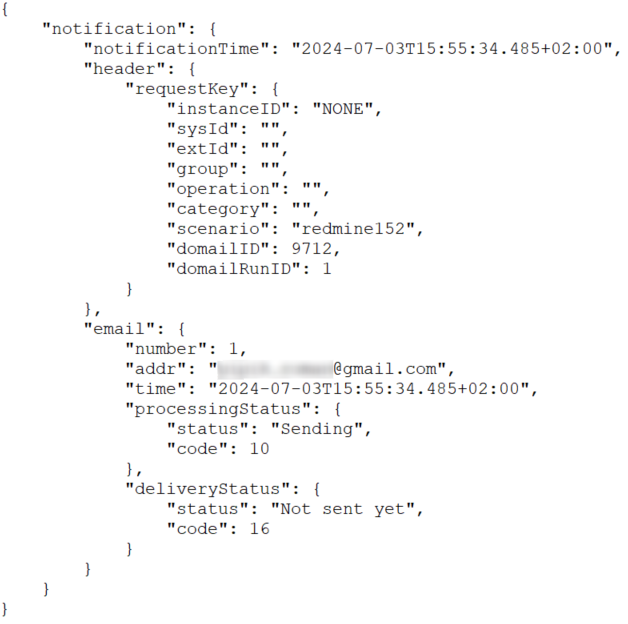
When another system needs to respond to state changes, doMail can send JSON notifications to ActiveMQ queues. Notifications cover processing and delivery state changes. Early processing events refer to the request's run; individual message events provide details about a specific message and recipient.
ActiveMQ notifications are available by arrangement. If you are interested, contact us at domail@domail.io. We will agree on the integration details with you and configure notifications on your doMail instance.
A notification includes the event time and these main sections:
header— request and run IDs, external and system identifiers, scenario and statistical parameters.requestProcessing— processing and delivery states at run level.email— message number, recipient and individual message states, including available SMTP delivery details.
The requestProcessing and email sections depend on the event's level;
do not expect both in every notification. The format is described by the
notification JSON schema.
The receiving system can match the request ID, run number and message number to its records
and initiate the appropriate follow-up.
Reporting undelivered messages using a scenario
First, create a reporting script. Alongside the settings needed to send an email, add the following plugin:
reportUndelivered.sendEmail();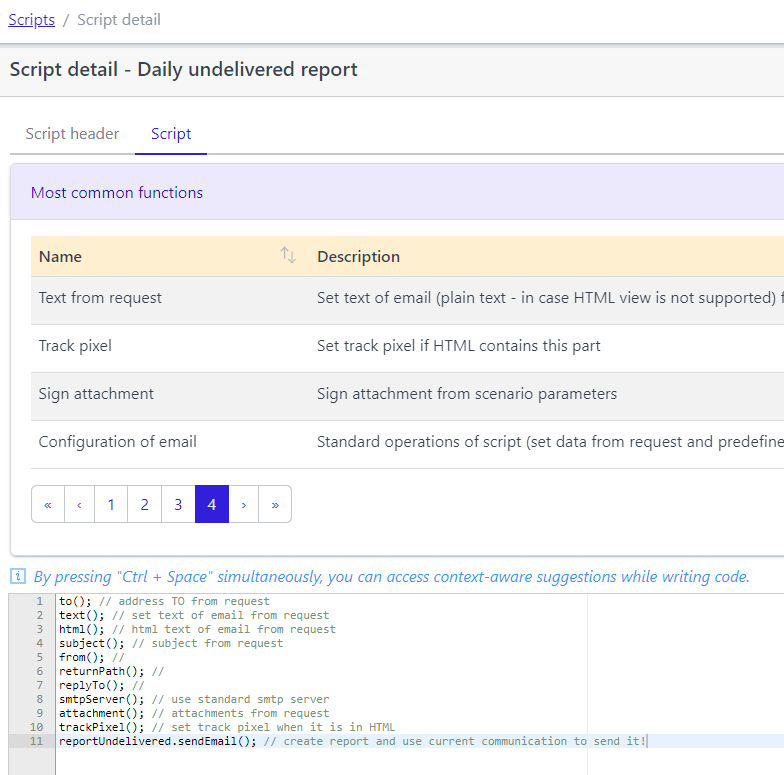
Then, in Configuration → Scenarios, create a reporting scenario and assign the prepared script. Save the scenario first. After the first save, the constants tab becomes available. Configure recipients, the interval and report content in the constants using the overview below. Remember to activate the scenario and save it again.
Configure report delivery and content
The reporting scenario uses constants with the reportUndelivered. prefix.
Start by choosing who receives the report and how often it is created:
Select the required constants in the left table and add them to the right table. Set your custom values there and save the changes.

| Constant | Meaning |
|---|---|
reportUndelivered.recipients | Email addresses that receive the report. Separate multiple addresses with commas. |
reportUndelivered.duration | Sending interval in days. A value of 1 means daily reporting. |
reportUndelivered.sendEmpty | Controls whether the report is sent even when it contains no records. |
reportUndelivered.reportedIContent | Names of request iContent fields to include in the CSV, separated by commas. These can contain a customer number or document number, for example. |
reportUndelivered.subject | Subject of the report email. |
reportUndelivered.textreportUndelivered.html | Plain text and HTML versions of the report email content. |
reportUndelivered.fileName | Name of the CSV attachment. |
The subject, content and attachment name support {date}, {dateTime},
{scenario} and {scenarioId}. These are replaced with the current server
date and time or the reporting scenario's name and ID. The attachment name also supports
{id}, {runid} and {num} to identify the request,
processing run and message used to create the report.
If you only need reports on demand, leave the interval unset. Send a request to the reporting scenario to generate a report; you can also do this between scheduled reports. It processes records marked for reporting that have not yet been included in a report.
Choose which scenarios to monitor
Open constants on each scenario whose undelivered messages
you want to report. Select the prepared reporting scenario in
monitorUndelivered.reporting.scenario and save the change.
Creating a reporting scenario does not automatically assign it to every other scenario.
Alternatively, use monitorUndelivered.reporting.id to specify reporting scenario IDs,
separated by commas. When reporting scenarios are specified by ID, that setting takes precedence
over selection by name.
You can assign the same reporting scenario to several sending scenarios. Prepare separate reporting scenarios when you need different recipients or report content.
Understand the non-delivery reason
A message can fail during processing or sending. Non-delivery can also be recorded later, when a non-delivery notification arrives after sending. A report can therefore contain different causes, such as an address being blocked, a processing error or a message being rejected during delivery.
Three separate constants control how much detail the CSV provides:
reportUndelivered.reportReasonadds a reason based on the processing or delivery state.reportUndelivered.reportDetailadds a categorized and localized non-delivery detail, such as a full mailbox.reportUndelivered.reportOriginaladds the original error text, including the original SMTP message for a delivery failure.
A brief reason and detail help with routine checks. For technical investigation, the original message can explain whether you need to correct the address, check the recipient's mailbox or review the sending configuration. Consider the complete error text: a numeric code alone may not explain the specific cause.
Send separate reports to the responsible people
Alongside the combined report, you can send subreports to people associated with individual
requests. Set reportUndelivered.specialRecipients.iContent to the name of the
iContent field containing the subreport recipient's address.
Include this field in reportUndelivered.reportedIContent as well.
Choose the scenario that sends subreports using
reportUndelivered.reporting.special.scenario or
reportUndelivered.reporting.special.id. It must be able to send the report as an attachment.
Your operations team can receive the combined overview while the responsible person receives
the relevant cases.
A well-configured report helps you catch undelivered messages without checking every communication individually each day. Choose the relevant scenarios, include the details needed to identify the customer or document, and send the report to people who can respond to the issues.