


When several people work in doMail, each user can have access to different settings and communications. Roles determine which parts of the application they can use and which actions they can perform. Special Access Rules let you further limit the communications they can see, for example to specific scenarios.
Create a user
Open Administration → Users and add a user. Enter their username, name and email address. Set a password and confirm it; you can also generate a password directly in the form.
To create an administrator, select the Admin account type. This account type has access to all parts of the application without assigning any additional roles.
For an account with individually configured permissions, select User. Assign the required roles and, if needed, restrict communication visibility through access rules. Save the user once configuration is complete.

Roles and access to screens
For accounts of type User, combine roles according to the user's responsibilities. Read permission is the starting point; the application denies access to users without it.
| Role | Access provided |
|---|---|
| Read | View communications and statistics within the permitted scope. |
| Execute | Perform actions on communications, such as resending or reprocessing. |
| Configuration | Access scenarios, templates, scripts, files, tracking link configuration and campaigns. |
| Administration | Manage users and roles. |
The Administration role lets you give an account of type User access to the Administration section for managing users and roles. To let them also manage sending configuration, add the Configuration role. Monitoring, settings, certificates and global whitelists and blacklists are reserved for Admin accounts.
Limit access to communications
Use Special Access Rules to define which communications a user can access. A rule lets you select a scenario and specify a group or category. This allows you to match access to the way work is divided between teams or customers.
For example, if a colleague should only review newsletters, grant access to the specific scenario that sends them. The communications list will then show communications within the permitted scope. You can keep other communications, such as invoices or internal notifications, outside their access.
Roles and these rules control two different things: roles determine the available parts of the application and actions, while access rules define the scope of visible communications. When reviewing permissions, also check the rules the user inherits from their assigned roles.
Create reusable roles
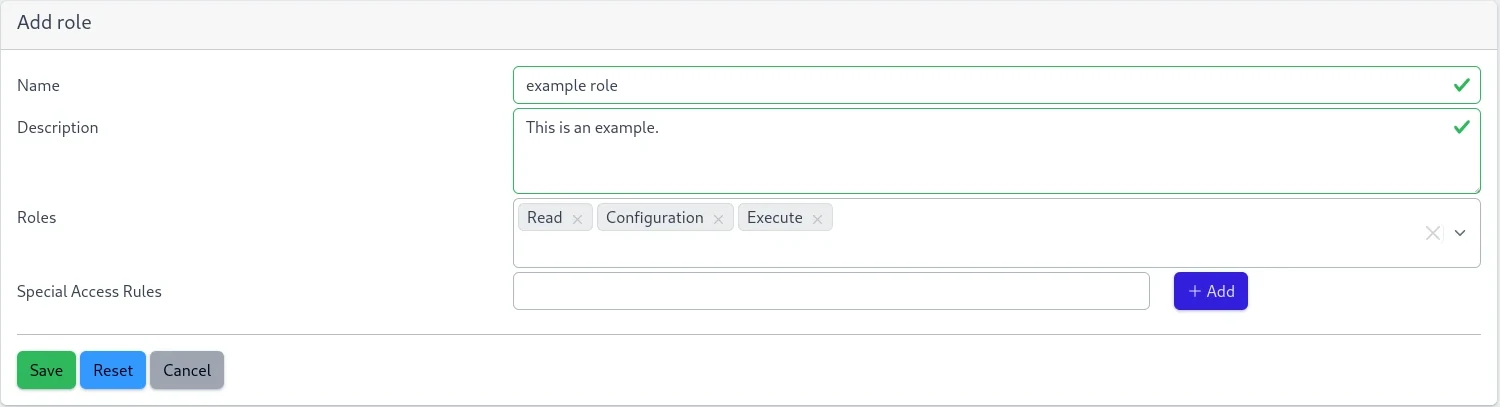
When several people need the same permissions, create a custom role under Administration → Roles. Enter a name and description, select existing roles and add Special Access Rules as needed. Once saved, the role can be assigned to several users.
A role can also include other custom roles, so you do not have to configure shared permissions for each user separately. When changing a shared role, consider all users who rely on it.
Change passwords
To change a user's password, open their details and select Change password. Enter and confirm a new password, or use the password generator. Users can also change their own password through the account menu.
This lets you give each user the communications and tools they need for their work, while maintaining shared access settings through roles.